
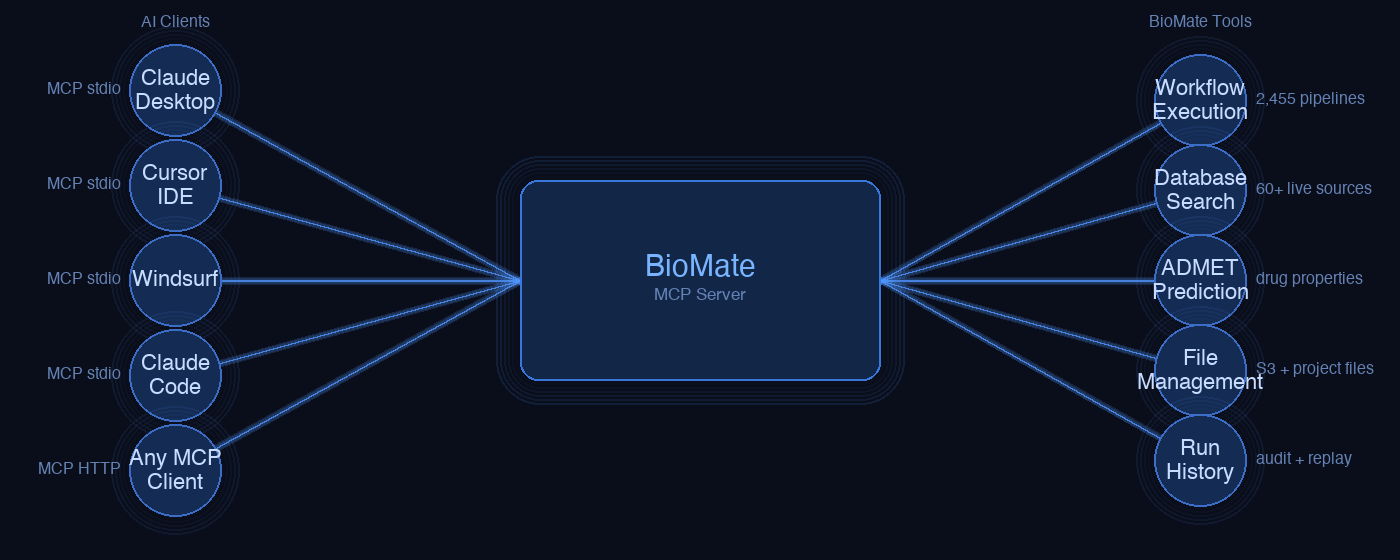
Use BioMate from your AI assistant to find workflows, plan analyses, and work with your results. Start by connecting your account, then describe the research task you want to carry out.
Connect your account
Open the connector setup guide and choose your app. Run its setup command, sign in to BioMate in your browser, and restart the app. The guide covers Claude Code, Claude Desktop, Cursor, and Codex CLI.
Begin with your research question
Try asking: “Search BioMate for RNA-seq differential expression workflows.” Review the suggestions and ask your assistant to explain the inputs required by your chosen workflow.
For an RNA-seq study, check the organism, reference, sample groups, biological replicates, and comparison before starting. Provide input files or data locations that BioMate can access.
Review the plan, then start
A planning conversation helps you choose an approach. When you have reviewed the inputs and settings, ask your assistant to start the selected workflow. Keep the returned run ID so you can refer to the analysis later.
Follow your analysis
Ask: “Check the status of my BioMate run.” Include the run ID if you have several analyses. Each request retrieves the latest status; ask again when you want another update.
Understand and export the findings
When results are available, ask your assistant to show the output files and explain the quality-control results. Review those outputs alongside the biological findings.
To save the findings, ask: “Export this run’s findings as Markdown.” If the report is still being prepared, try again later. You can edit the exported text in a compatible editor and format it for your own report.
The BioMate connector user guide includes setup commands, example requests, and answers to common questions.